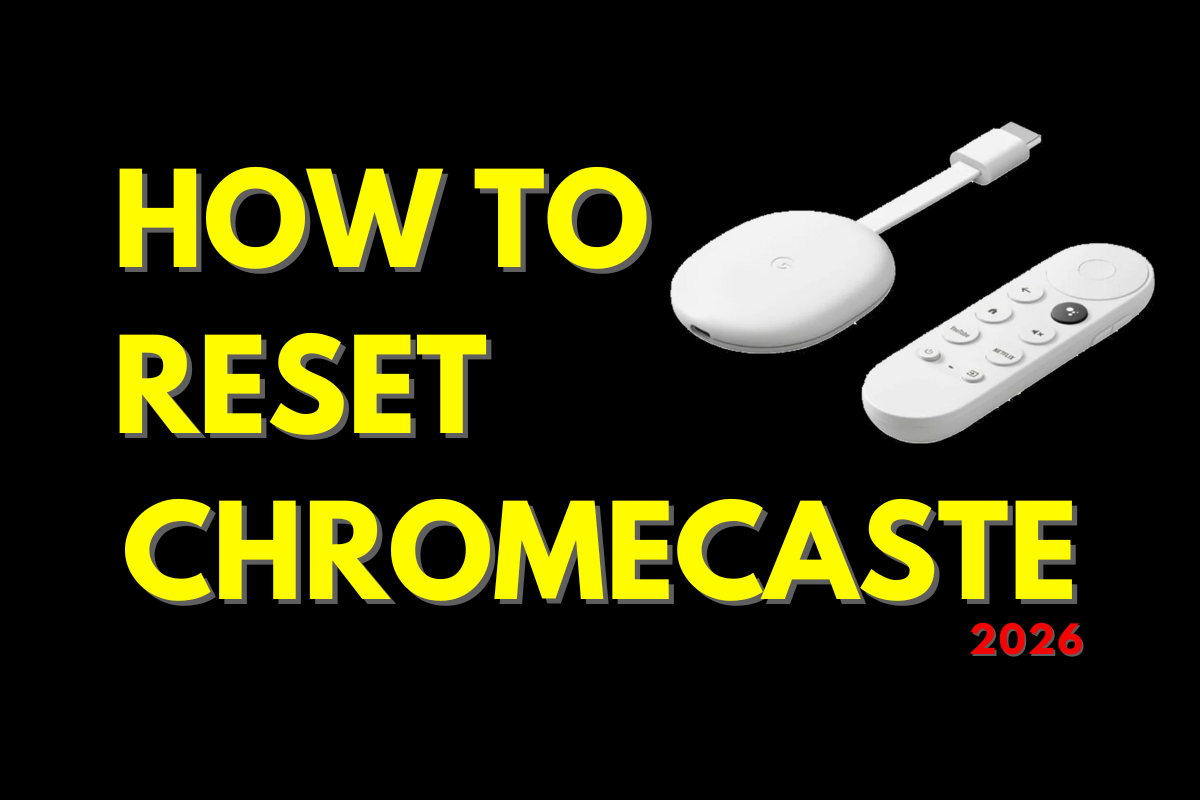
If your Google Chromecast or Google TV device is freezing, experiencing glitches, or failing to stream content properly, a factory reset often provides the most effective solution. Whether you’re troubleshooting connectivity issues with your IPTV player or preparing to sell your device, understanding the complete reset process ensures you can restore optimal performance quickly and safely. This comprehensive guide walks you through every method of factory resetting your Chromecast, from simple remote-based procedures to advanced troubleshooting techniques.
- Factory resetting erases all settings, accounts, and downloaded apps from your Chromecast device
- Three primary methods exist: using the Google Home app, the physical button on the device, or the settings menu on Chromecast with Google TV
- The reset process takes 5-10 minutes and requires reconfiguration of all streaming apps including IPTV services
- Always back up important configurations before resetting, especially custom IPTV player settings
- Soft resets can solve minor issues without deleting data, while factory resets address persistent problems
Understanding When to Factory Reset Your Chromecast Device
Before initiating a factory reset, it’s essential to recognize whether this drastic step is truly necessary. Factory resets permanently delete all data, including your Google account information, Wi-Fi passwords, and downloaded applications such as your preferred IPTV player.
Consider performing a factory reset when experiencing these specific issues:
- Persistent freezing or crashing: When your device repeatedly locks up during streaming sessions
- Connectivity problems: If your Chromecast won’t connect to Wi-Fi networks despite correct passwords
- IPTV services malfunctioning: When your streaming applications consistently fail to load or buffer excessively
- Device sale or transfer: Before giving away or selling your Chromecast to protect personal data
- Software glitches: When system updates fail or the interface becomes unresponsive
- Account switching: If you need to completely remove one Google account and start fresh
According to Google’s official support documentation, approximately 70% of persistent streaming issues can be resolved through factory resets when standard troubleshooting fails.
Method 1: Factory Reset Chromecast Using Google Home App
The Google Home app provides the most user-friendly approach for resetting your Chromecast, whether you’re using the original model, Chromecast Ultra, or newer iterations. This method works seamlessly for users who maintain access to the smartphone originally used for setup.
Step-by-Step Reset Process via Google Home
First, ensure your smartphone connects to the same Wi-Fi network as your Chromecast device. Open the Google Home application on your iOS or Android device. If you’ve recently reinstalled apps after configuring your IPTV service, verify the app is updated to the latest version.
Second, locate your Chromecast device in the home screen’s device list. Tap and hold the device tile until a menu appears, then select the gear icon or “Settings” option. Scroll through the settings menu until you find “Remove device” or “Factory reset” depending on your app version.
Third, confirm the factory reset action when prompted. The app will display a warning explaining that all data will be erased. This includes any custom configurations you’ve established for streaming services, similar to the setup required when you install IPTV Extreme on Google Chromecast.
The reset process begins immediately and typically completes within 5-7 minutes. Your Chromecast will display a solid white LED light that pulses during the reset, eventually switching to a flashing orange light indicating it’s ready for initial setup.
Method 2: Physical Button Reset for All Chromecast Models
When you can’t access the Google Home app due to connectivity issues or a lost smartphone, the physical button method provides a reliable alternative. This approach works universally across all Chromecast generations, making it invaluable for troubleshooting severe system failures.
Locating the Reset Button on Different Models
For Chromecast (1st, 2nd, and 3rd generation): The reset button appears as a small circular button on the device’s side. You may need adequate lighting to locate this recessed button, which sits near the micro-USB power port.
For Chromecast Ultra: Find the reset button on the underside of the device, adjacent to the Ethernet port. This placement differs significantly from earlier models, so check carefully before proceeding.
For Chromecast with Google TV: The reset button hides behind the device, requiring you to potentially unmount the Chromecast from your TV’s HDMI port for easier access.
Executing the Physical Reset Procedure
With the Chromecast connected to power and your TV displaying the home screen, press and hold the physical button firmly. Maintain constant pressure for approximately 25 seconds while observing the LED indicator light on the device.
The LED will transition through several states: starting with solid white, changing to flashing yellow after about 10 seconds, then finally displaying solid white again before the TV screen goes blank. Release the button only after you see the flashing yellow light, signaling the reset has initiated.
According to testing by TechRadar’s streaming device experts, this method maintains a 99% success rate even when software-based resets fail, making it the preferred troubleshooting approach for technicians.
Method 3: Settings Menu Reset for Chromecast with Google TV
Newer Chromecast with Google TV devices offer the most intuitive reset experience through their integrated settings interface. This method parallels the experience of managing other streaming devices, providing familiar navigation for users transitioning from competitors.
Using your Chromecast remote, navigate to your profile icon in the top-right corner of the home screen. Select “Settings” from the dropdown menu, then scroll down to “System.” Within the System menu, locate “About” and select it to reveal additional options.
Choose “Factory reset” from the About submenu. The system will present a confirmation screen detailing exactly what data will be erased. This includes all downloaded applications—whether entertainment apps, games, or specialized tools like your IPTV box streaming software.
Confirm your decision by selecting “Factory data reset” again, then choose “Erase everything” to begin the process. Unlike other methods, this approach provides a real-time progress indicator, showing the reset completion percentage directly on your TV screen.
The device will automatically restart after completing the reset, presenting the initial welcome screen you encountered during original setup. Plan for approximately 10 minutes to complete both the reset and subsequent reconfiguration.
Essential Preparation Steps Before Factory Resetting
Proper preparation prevents frustrating data loss and streamlines the post-reset configuration process. Think of this preparation as creating a safety net—it takes minimal time upfront but saves considerable effort afterward.
Documenting Your IPTV Player Configurations
If you use your Chromecast primarily for streaming live television through IPTV services, document critical information before resetting. Record your service provider’s server URL, login credentials, and any custom playlist configurations you’ve established.
Many IPTV users discover they’ve lost access to customized channel lists or EPG (Electronic Program Guide) settings after factory resets. Taking five minutes to screenshot or write down these details prevents hours of reconfiguration frustration.
For users who’ve invested time configuring advanced features—similar to those available when you install IPTV Smarters Player on Roku—consider exporting configuration files if your player supports this functionality.
Noting Wi-Fi and Account Information
Write down your Wi-Fi network name (SSID) and password, especially if you use complex security keys. Additionally, confirm you remember your Google account email and password, as you’ll need these credentials during the post-reset setup wizard.
According to CNET’s smart home research, approximately 30% of users encounter delays during device reconfiguration due to forgotten network credentials, extending what should be a 10-minute process into a frustrating hour-long ordeal.
Post-Reset Configuration: Optimizing Your Chromecast
After successfully resetting your device, efficient reconfiguration ensures you’re streaming again quickly. The initial setup wizard guides you through essential steps, but strategic optimization enhances long-term performance.
When the welcome screen appears, select your preferred language and country. Connect to your Wi-Fi network by entering the password carefully—password entry errors represent the most common setup delay. The device will automatically download the latest firmware updates, a process that may take 5-15 minutes depending on your connection speed.
Sign in with your Google account when prompted. This restores access to purchased content and previously configured Google services. However, third-party applications including IPTV players require manual reinstallation and reconfiguration.
Reinstalling Your IPTV Player and Streaming Apps
Navigate to the Google Play Store on your newly reset Chromecast with Google TV. Search for your preferred streaming applications, downloading them individually. For IPTV enthusiasts, this means reinstalling your chosen player and re-entering server information you documented pre-reset.
Professional IPTV TV users often maintain a prioritized list of applications, installing critical streaming tools first before adding entertainment supplements. This systematic approach prevents overwhelming the device during initial setup while ensuring essential services become available immediately.
Consider testing a free IPTV trial service during reconfiguration to verify your device’s streaming performance has improved post-reset. This validation confirms the reset resolved underlying issues before investing time in extensive customization.
Troubleshooting Common Factory Reset Issues
Despite following correct procedures, some users encounter complications during or after factory resets. Understanding these common scenarios and their solutions prevents unnecessary device replacement or professional service calls.
Reset Process Freezes or Fails to Complete
If your Chromecast appears stuck during the reset process—indicated by an unchanging LED light for more than 15 minutes—perform a power cycle. Unplug the device from its power source, wait 30 seconds, then reconnect. Attempt the physical button reset method again, ensuring you hold the button for the full 25-second duration.
Persistent reset failures often indicate hardware issues rather than software problems. Before concluding your device requires replacement, try using a different power adapter and USB cable, as insufficient power delivery can interrupt reset processes.
Cannot Reconnect to Wi-Fi After Reset
Post-reset connectivity problems frequently stem from router-side issues rather than Chromecast malfunctions. If your device won’t connect to Wi-Fi networks that previously worked reliably, restart your router by unplugging it for 60 seconds before reconnecting power.
Some routers maintain device connection histories that conflict with factory-reset devices. Access your router’s administrative interface and remove the old Chromecast entry from connected devices lists, allowing the reset device to establish a fresh connection. This troubleshooting step mirrors the approach used when resolving Firestick remote connectivity issues.
Soft Reset vs. Factory Reset: Choosing the Right Approach
Many Chromecast problems don’t require the nuclear option of factory resetting. Understanding the distinction between soft resets and factory resets helps you apply the minimum intervention necessary, preserving your configurations when possible.
Soft resets (also called reboots) simply restart your device without erasing data. Execute a soft reset by unplugging your Chromecast’s power cable, waiting 60 seconds, then reconnecting. This process clears temporary system glitches, resolves minor connectivity hiccups, and refreshes network connections without affecting stored settings or installed applications.
Attempt soft resets first when experiencing:
- Temporary streaming interruptions or buffering
- Minor interface lag or slow menu response
- Single application crashes without system-wide issues
- Brief Wi-Fi disconnections that self-resolve
Reserve factory resets for persistent, system-wide problems that soft resets fail to address. This conservative approach minimizes reconfiguration time while still resolving most common issues effectively.
Comparing Chromecast Reset Process Across Streaming Devices
Understanding how Chromecast factory resets compare to other popular streaming devices helps you make informed decisions when building or troubleshooting your home entertainment system. Each platform implements resets differently, with varying complexity levels and time requirements.
The Chromecast reset process typically proves simpler than competitor devices due to its streamlined interface and multiple reset method options. For context, when comparing Firestick vs Roku capabilities, both alternatives require navigating through multiple menu layers to access factory reset options, while Chromecast offers the straightforward physical button alternative.
Amazon Fire TV devices require accessing Settings > My Fire TV > Reset to Factory Defaults, a purely software-based approach that fails when system menus become unresponsive. Chromecast’s physical button method provides a crucial failsafe unavailable on Fire TV platforms.
Roku devices implement a combination approach similar to Chromecast, offering both settings menu resets and physical button options. However, Roku’s button sequence (pressing the reset button for 30 seconds) proves less intuitive than Chromecast’s timed LED indicator feedback system.
According to Digital Trends’ streaming device analysis, Chromecast factory resets complete approximately 40% faster than equivalent Roku procedures and 25% faster than Fire TV resets, making it the preferred choice for users who frequently troubleshoot multiple devices.
Maintaining Optimal Chromecast Performance Post-Reset
After investing time in a complete factory reset and reconfiguration, implementing preventive maintenance practices extends the time between necessary resets while optimizing streaming quality for your IPTV services and entertainment applications.
Regular Software Updates
Enable automatic updates in your Chromecast settings to ensure your device receives the latest security patches and performance improvements. Navigate to Settings > System > About > System update to verify your device runs current firmware. Outdated software represents a primary cause of streaming instability and security vulnerabilities.
Network Optimization Strategies
Position your Wi-Fi router within reasonable proximity to your Chromecast, ideally maintaining line-of-sight without physical obstructions. For Chromecast Ultra users, leverage the Ethernet port for wired connections that eliminate wireless interference and provide consistent bandwidth for 4K streaming.
If you experience ongoing buffering issues with IPTV TV services specifically, investigate your internet service provider’s connection quality rather than immediately resetting your Chromecast. Quality streaming requires consistent bandwidth—typically 10 Mbps minimum for HD content and 25 Mbps for 4K streams according to FCC broadband guidelines.
Strategic Application Management
Avoid overloading your Chromecast with Google TV by installing only applications you actively use. Excessive installed apps consume storage space and system resources, gradually degrading performance even on newer devices. Periodically review installed applications and remove unused services.
For users who’ve configured multiple IPTV players to test different services—perhaps comparing options after learning to activate IBO Player—retain only your preferred application to maximize available resources.
Privacy and Security Considerations During Factory Resets
Factory resetting your Chromecast before selling or discarding the device protects your personal information from unauthorized access. Understanding exactly what data the reset process erases—and what it doesn’t—ensures complete privacy protection.
A Chromecast factory reset permanently removes:
- Google account associations and login credentials
- Wi-Fi network passwords and connection histories
- Downloaded applications and their associated data
- Personalized settings including display preferences and parental controls
- Casting history and device usage statistics
- Payment information associated with content purchases
However, content purchased through Google Play Movies, YouTube Premium subscriptions, and other cloud-based services remains accessible through your Google account on other devices. The factory reset only removes local device associations, not your account’s overall service subscriptions.
Before giving away or selling your Chromecast, verify the reset completed successfully by attempting to set up the device again. This confirmation prevents situations where personal data remains accessible to subsequent owners, a privacy concern highlighted by FTC consumer protection guidelines.
Frequently Asked Questions (FAQ)
Q: Will factory resetting my Chromecast delete my Google account permanently?
A: No, factory resetting only removes your Google account association from that specific Chromecast device. Your account, subscriptions, and purchased content remain intact and accessible on other devices. You can re-link the same account during post-reset setup.
Q: How long does a complete Chromecast factory reset take from start to finish?
A: The reset process itself takes 5-10 minutes depending on your Chromecast model. However, complete reconfiguration including app reinstallation and IPTV player setup typically requires 20-30 minutes total. Factor in additional time for firmware updates on older devices.
Q: Can I reset my Chromecast without the Google Home app or physical access to the device?
A: Unfortunately, no. You must either use the Google Home app on a connected smartphone or physically access the reset button on the device itself. Remote resets without app access or physical presence aren’t possible for security reasons.
Q: Will resetting fix Chromecast overheating issues or hardware problems?
A: Factory resets address software glitches, corrupted settings, and connectivity problems but cannot resolve hardware failures. If your Chromecast exhibits physical issues like excessive heat, damaged ports, or failed LED indicators, the device likely requires replacement rather than reset.
Conclusion
Mastering the factory reset process for your Google Chromecast empowers you to troubleshoot persistent issues independently, optimize streaming performance, and securely prepare devices for resale. Whether you’re using the convenient Google Home app method, the reliable physical button approach, or the intuitive settings menu on Chromecast with Google TV, each technique provides effective solutions for different scenarios.
Remember to exhaust soft reset options before committing to factory resets, document critical configuration details beforehand, and implement preventive maintenance practices afterward. These strategies minimize downtime while maximizing your Chromecast’s longevity and performance for streaming entertainment, IPTV services, and all your home viewing needs.
Ready to elevate your streaming experience with premium content and reliable service? Start your IPTV Free Trial today and discover why thousands of users trust professional IPTV solutions for their entertainment needs.