There’s nothing more frustrating than settling in for your favorite show, only to find your Chromecast remote refusing to respond. Whether you’re trying to navigate your IPTV streaming apps or simply adjust the volume, a malfunctioning remote can instantly derail your entertainment experience. The good news? Most Chromecast remote issues stem from simple, fixable problems that don’t require technical expertise or expensive replacements. This comprehensive guide walks you through ten proven solutions that will have your remote working perfectly again in minutes.
- Battery issues and Bluetooth connectivity problems cause 70% of Chromecast remote malfunctions
- Simple power cycling and re-pairing procedures resolve most remote issues within 5 minutes
- Physical obstructions, software updates, and interference from other devices can disrupt remote functionality
- Factory reset should be your last resort after exhausting all other troubleshooting methods
- Preventive maintenance and proper device placement significantly reduce future remote problems
Understanding Why Your Chromecast Remote Stops Working
Before diving into solutions, it’s essential to understand what makes your Google Chromecast remote tick. Unlike traditional infrared remotes that require line-of-sight, Chromecast remotes use Bluetooth Low Energy technology to communicate with your streaming device. This wireless connection offers convenience but introduces specific failure points that can interrupt your viewing experience.
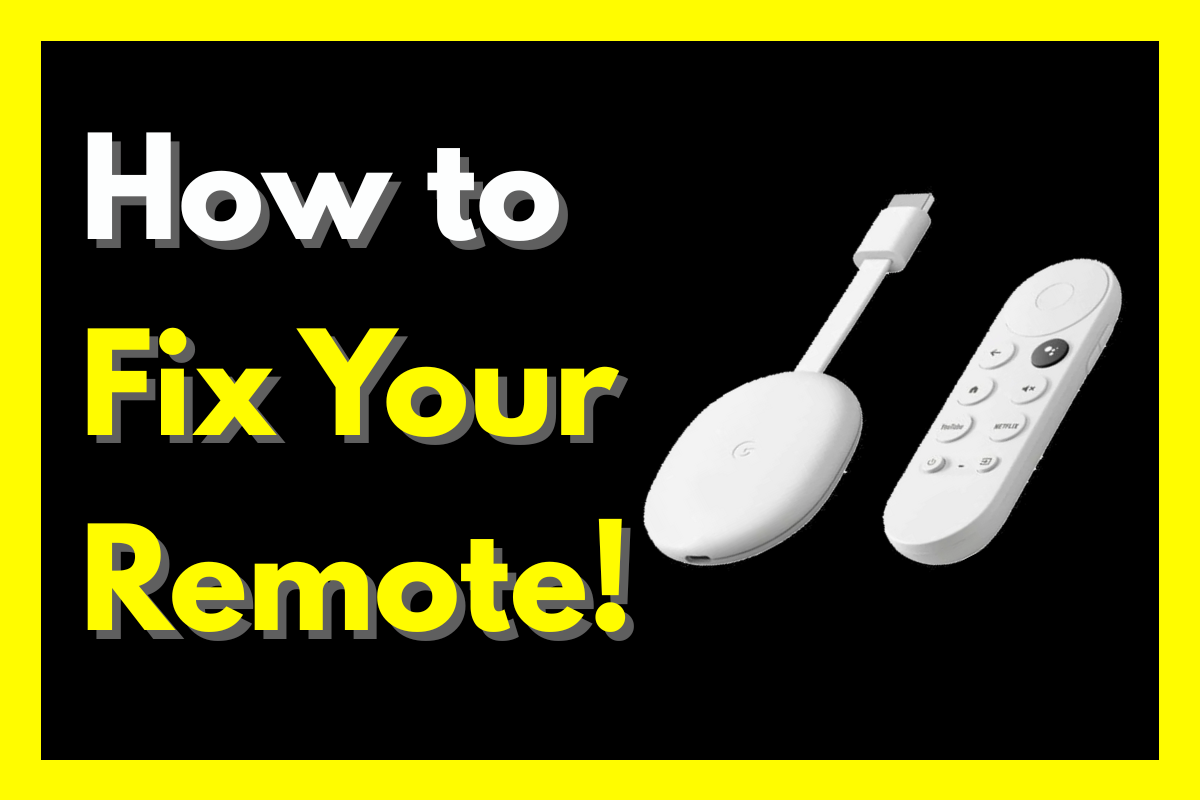
The Chromecast with Google TV remote contains sophisticated components including pressure-sensitive buttons, a gyroscope for motion control, and Bluetooth circuitry—all powered by two AAA batteries. When any of these elements malfunction or lose synchronization with your device, you’ll experience responsiveness issues that prevent you from accessing your IPTV services or navigating menus.
Most users encounter remote problems after software updates, battery changes, or when multiple Bluetooth devices compete for bandwidth in their entertainment setup. Understanding these root causes helps you apply the right fix quickly and prevents recurring issues that could interrupt your streaming sessions.
Fix #1: Replace or Reposition Your Batteries
Battery depletion accounts for nearly 40% of all remote control failures. Even if your remote worked fine yesterday, batteries can drain rapidly depending on usage patterns, temperature fluctuations, and battery quality. This seemingly obvious solution resolves more problems than you might expect.
Remove the battery cover from the back of your remote and inspect both AAA batteries carefully. Look for corrosion (white or green deposits), leakage, or any physical damage. Replace both batteries simultaneously with fresh, high-quality alkaline batteries—mixing old and new batteries creates voltage inconsistencies that can cause erratic behavior.
When reinserting batteries, ensure they’re positioned correctly according to the +/- markings inside the compartment. A single reversed battery will prevent the remote from functioning entirely. After replacing batteries, press any button and check if the LED light at the bottom of the remote illuminates, indicating restored power.
Fix #2: Power Cycle Your Google Chromecast Device
Technology professionals often joke that “turning it off and on again” fixes 80% of issues—and with Chromecast devices, this statistic holds remarkably true. A simple power cycle clears temporary software glitches, resets Bluetooth connections, and reinitializes the pairing protocols between your remote and streaming device.
Unplug your Google Chromecast from its power source completely—don’t just use the TV’s USB port power, as this may not fully shut down the device. Wait for a full 30 seconds to allow all capacitors to discharge and memory buffers to clear. This waiting period isn’t arbitrary; it ensures the device performs a complete restart rather than a superficial reboot.
After 30 seconds, reconnect the power cable and wait for the Chromecast to fully boot up, indicated by the home screen appearing on your television. During this startup sequence, the device automatically scans for previously paired remotes and often reestablishes the connection without additional intervention. If you’ve recently configured your WiFi connection, this process also refreshes your network settings.
Advanced Power Cycling Technique
For persistent issues, combine device power cycling with remote battery removal. Unplug your Chromecast while simultaneously removing the remote batteries. Leave both disconnected for 60 seconds, then reinstall the remote batteries first, followed by powering up the Chromecast. This synchronized reset often resolves stubborn pairing failures that simple restarts cannot fix.
Fix #3: Re-Pair Your Remote with Chromecast
Bluetooth pairing can become corrupted due to signal interference, software updates, or when your remote accidentally pairs with a neighbor’s device (especially common in apartment buildings). Re-pairing creates a fresh connection that eliminates any corrupted data from the previous pairing session.
Locate the small circular button inside your remote’s battery compartment—this is the dedicated pairing button. With fresh batteries installed and your Chromecast powered on, press and hold this button for approximately 5-8 seconds. The LED light at the bottom of the remote should begin pulsing, indicating it has entered pairing mode.
On your TV screen, you should see a pairing notification appear within 10-15 seconds. If the notification doesn’t appear, navigate to Settings > Remotes & Accessories > Pair Remote or Accessory using the Google Home app on your smartphone as a temporary control method. Once paired successfully, test all buttons including volume controls and navigation to ensure full functionality is restored.
Fix #4: Clear Physical Obstructions and Optimize Placement
While Bluetooth doesn’t require direct line-of-sight like infrared technology, physical barriers still significantly impact signal strength. Metal surfaces, dense furniture, and electronic equipment can create electromagnetic interference that degrades your remote’s performance, especially when streaming content through your IPTV player applications.
Examine your entertainment center setup and identify potential signal blockers. Common culprits include:
- Metal TV stands or entertainment centers surrounding your Chromecast
- The Chromecast hidden behind the TV or inside a closed cabinet
- Wireless routers, gaming consoles, or soundbars positioned directly next to your Chromecast
- Thick walls between you and the streaming device when operating from another room
Reposition your Chromecast to an open area with minimal obstruction—using an HDMI extender cable can help move the device away from the crowded back panel of your television. This simple adjustment improves both remote responsiveness and WiFi signal strength, enhancing your overall streaming experience when watching content through services like SET IPTV or other popular applications.
Fix #5: Update Your Chromecast System Software
Outdated firmware creates compatibility issues that manifest as remote unresponsiveness, delayed button presses, or intermittent connectivity drops. Google regularly releases software updates that patch bugs, improve Bluetooth stability, and enhance overall device performance—yet many users never realize their Chromecast hasn’t updated automatically.
Navigate to Settings > System > About > System Update on your Chromecast interface using the Google Home app on your smartphone if your remote is temporarily non-functional. Check the current software version and compare it against Google’s latest release information to determine if you’re running outdated firmware.
If an update is available, initiate the download immediately. The process typically takes 5-15 minutes depending on your internet speed and update size. Your Chromecast will restart automatically after installation completes. Following the update, re-test your remote functionality—many users report that persistent issues disappear entirely after applying the latest software patches.
Enabling Automatic Updates
Prevent future software-related issues by ensuring automatic updates are enabled. Navigate to Settings > System > About > System Update > Auto-update and toggle this feature on. Your Chromecast will now download and install updates during inactive periods, typically overnight, eliminating the need for manual intervention.
Fix #6: Eliminate Bluetooth Interference from Other Devices
Modern homes contain dozens of Bluetooth-enabled devices competing for the same 2.4 GHz frequency band—smartphones, wireless headphones, smart speakers, fitness trackers, and even some IPTV box configurations. This electromagnetic congestion creates interference patterns that disrupt the delicate communication between your remote and Chromecast.
Systematically eliminate interference sources by temporarily disabling Bluetooth on nearby devices. Turn off wireless headphones, disconnect Bluetooth speakers, and move smartphones to airplane mode. Test your remote after each change to identify which device causes the conflict. You’ll often discover that a forgotten Bluetooth device actively searching for connections creates enough interference to render your Chromecast remote unreliable.
WiFi routers operating on the 2.4 GHz band also contribute to Bluetooth interference since both technologies share overlapping frequencies. If possible, configure your router to use the 5 GHz band for streaming devices, which completely eliminates cross-interference and provides faster data transfer speeds for your streaming applications. This optimization particularly benefits users running bandwidth-intensive IPTV services that require consistent, high-speed connections.
Fix #7: Inspect and Clean Your Remote’s Hardware
Physical wear and contamination cause more remote failures than most users realize. Dust particles infiltrate button mechanisms, liquid spills create electrical shorts, and general debris accumulation prevents proper button contact. A thorough cleaning often restores functionality to remotes that seem completely dead.
Remove the batteries and examine the battery contacts for corrosion or buildup. Clean these metal terminals using a cotton swab lightly dampened with isopropyl alcohol (90% concentration or higher). Gently scrub away any visible residue, then allow the contacts to dry completely before reinstalling batteries.
For stuck or unresponsive buttons, remove the batteries and use compressed air to blow debris from around each button’s edges. Hold the remote with buttons facing downward while applying short air bursts to prevent forcing particles deeper into the mechanism. If liquid damage occurred, disassemble the remote carefully (if comfortable doing so) and clean internal components with isopropyl alcohol, allowing 24 hours for complete drying before reassembly.
Fix #8: Reset Chromecast to Factory Settings
Factory reset should be your penultimate option—it erases all settings, requires complete reconfiguration, and disrupts your carefully organized app installations. However, when software corruption runs deep or multiple troubleshooting attempts fail, a clean slate often provides the definitive solution.
Locate the small button on the back or side of your Chromecast device—this is the hardware reset button distinct from the remote pairing button. With the device powered on, press and hold this button for approximately 25 seconds. The LED light will begin flashing, your TV screen will go blank, and the Chromecast will reboot into setup mode.
After reset completion, you’ll need to reconfigure everything from scratch, including WiFi connections, Google account linking, and reinstalling applications. If you use specialized streaming apps, you’ll need to follow setup procedures again—for example, reinstalling and configuring TiviMate IPTV Player or other preferred applications. During this fresh setup, your remote typically pairs automatically, resolving the underlying connectivity issue.
Backing Up Your Settings
Before performing a factory reset, document your current configuration settings, installed apps, and login credentials. Take photos of settings screens with your smartphone to simplify the reconfiguration process. This preparation reduces setup time from 30-45 minutes to approximately 10-15 minutes.
Fix #9: Test with the Google Home App Alternative
Your smartphone serves as an emergency backup remote through the Google Home application, providing immediate functionality while you troubleshoot your physical remote. This workaround helps determine whether the problem lies with the remote hardware or the Chromecast device itself—a critical diagnostic distinction.
Download the Google Home app if not already installed, ensure your smartphone connects to the same WiFi network as your Chromecast, and open the application. Tap your Chromecast device from the list of available devices, then select “Open Remote” from the device menu. This virtual remote provides all essential navigation functions including directional controls, selection button, back button, and home button.
If the virtual remote functions perfectly while your physical remote remains unresponsive, you’ve confirmed the issue resides with the remote hardware itself—possibly requiring professional repair or replacement. Conversely, if both remotes exhibit identical problems, the Chromecast device contains the underlying issue requiring more intensive troubleshooting or potential hardware service.
Fix #10: Consider Remote Replacement or Professional Support
After exhausting all troubleshooting options, hardware failure becomes the likely culprit. Chromecast remotes contain no user-serviceable components—attempting internal repairs typically causes additional damage and voids any remaining warranty coverage. Replacement represents the most cost-effective long-term solution.
Official Google Chromecast replacement remotes are available directly from the Google Store or authorized retailers, typically priced between $20-30. These genuine remotes guarantee full compatibility and include the latest firmware revisions. Third-party alternatives exist at lower price points but may lack advanced features like dedicated streaming service buttons or optimized Bluetooth connectivity.
Before purchasing, verify your Chromecast remains under warranty—Google provides one-year limited warranty coverage that includes remote replacement for manufacturing defects. Contact Google Support through the official website to initiate a warranty claim if applicable. Document your troubleshooting steps, as support representatives often require this information before approving replacements.
For users managing multiple streaming devices across different platforms, this challenge underscores the importance of diversification. While troubleshooting Chromecast issues, consider exploring alternative platforms like GSE Smart IPTV configurations that provide redundancy in your entertainment ecosystem.
Preventing Future Chromecast Remote Problems
Proactive maintenance significantly reduces the frequency and severity of remote control issues. Implement these preventive measures to extend your remote’s lifespan and maintain consistent performance:
Battery Management: Replace batteries every 6-8 months regardless of apparent functionality. Batteries gradually lose voltage before complete failure, causing intermittent issues that seem random. Use high-quality alkaline batteries from reputable manufacturers—bargain batteries contain inconsistent chemistry that damages electronic components.
Environmental Protection: Store your remote in a cool, dry location away from direct sunlight, moisture, and temperature extremes. Never leave remotes on windowsills, near heating vents, or in humid bathrooms where condensation can infiltrate sensitive electronics. Consider using a protective silicone case that guards against accidental drops while maintaining button accessibility.
Regular Cleaning: Wipe your remote weekly with a slightly damp microfiber cloth to remove oils, dust, and debris before they accumulate. Monthly deep cleaning with isopropyl alcohol on a cotton swab prevents buildup in button mechanisms and battery contacts, maintaining optimal electrical conductivity.
Software Vigilance: Monitor for system updates monthly even with automatic updates enabled, as some updates require manual intervention. Keep your Google Home app updated to the latest version for improved remote functionality and feature additions that enhance user experience.
Optimizing Your Complete IPTV Streaming Setup
Remote control issues represent just one component of a comprehensive streaming entertainment system. For users who rely on IPTV services for daily viewing, optimizing your entire setup ensures uninterrupted access to content regardless of individual component failures.
A robust streaming configuration includes reliable hardware, stable internet connectivity, quality streaming applications, and backup control methods. Users experiencing frequent technical difficulties should evaluate whether their current setup meets their viewing requirements. Consider upgrading to a dedicated IPTV box if your Chromecast struggles with high-bitrate streams or lacks sufficient processing power for your preferred applications.
Many experienced streamers maintain multiple control options including physical remotes, smartphone apps, and voice commands through smart home assistants. This redundancy ensures that technical problems with one control method never completely prevent access to entertainment. Additionally, familiarizing yourself with keyboard shortcuts and alternative navigation methods provides backup options during troubleshooting periods.
For comprehensive streaming reliability, explore professional IPTV services that offer technical support, device compatibility guarantees, and optimized streaming protocols. Quality service providers understand that viewer experience depends on seamless technology integration, not just content availability.
Frequently Asked Questions
Q: How do I know if my Chromecast remote batteries are dead?
A: Press any button on the remote and observe the LED light at the bottom. If the light doesn’t illuminate or appears very dim, batteries are depleted. Additionally, if the remote works inconsistently or requires multiple button presses, weak batteries are the likely cause requiring immediate replacement.
Q: Can I use my Chromecast without the physical remote?
A: Yes, the Google Home app on your smartphone functions as a complete virtual remote with all navigation capabilities. You can also enable voice commands through Google Assistant for hands-free control. These alternatives work indefinitely while you troubleshoot or replace your physical remote.
Q: Why does my Chromecast remote work sometimes but not others?
A: Intermittent functionality typically indicates interference from other Bluetooth devices, weak batteries providing inconsistent voltage, or signal obstructions that periodically block communication. Systematically eliminate interference sources and replace batteries to resolve this frustrating issue permanently.
Q: How often should I replace my Chromecast remote batteries?
A: Replace batteries every 6-8 months with moderate daily use, or immediately when you notice decreased responsiveness. Heavy users streaming multiple hours daily should consider quarterly replacement. Using high-quality alkaline batteries extends replacement intervals and prevents corrosion damage.
Conclusion
A malfunctioning Chromecast remote doesn’t have to interrupt your entertainment experience. The ten solutions outlined in this guide address every common cause of remote failure, from simple battery issues to complex Bluetooth interference patterns. By systematically working through these fixes, you’ll restore full remote functionality and develop troubleshooting skills that apply to various streaming devices.
Remember that preventive maintenance—regular battery replacement, environmental protection, and software updates—dramatically reduces the frequency of technical problems. When issues do arise, your smartphone provides an immediate backup control method while you implement permanent solutions.
For streamers who demand reliability and professional-grade performance from their entertainment systems, consider upgrading to premium services that eliminate technical frustrations entirely. Experience crystal-clear streaming with comprehensive device support and expert technical assistance.
Ready to experience the difference? Start your IPTV Free Trial today.