
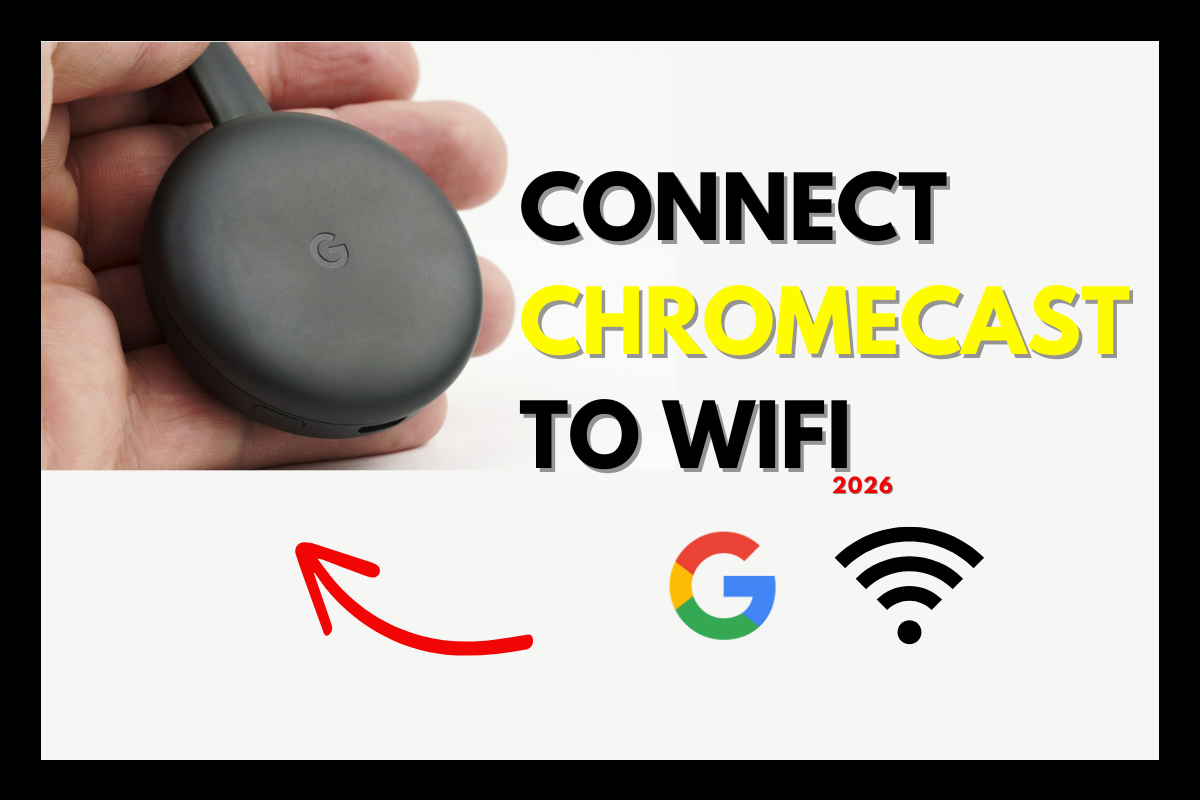
Setting up your Google Chromecast can feel overwhelming, especially when you’re eager to stream your favorite content through IPTV services. Whether you’ve just unboxed a new Chromecast device or you’re troubleshooting connectivity issues, getting your device properly connected to WiFi is the critical first step. This comprehensive guide walks you through every scenario—from initial setup to advanced troubleshooting—ensuring you can start streaming seamlessly within minutes. By following these proven methods, you’ll unlock the full potential of your streaming device and enjoy uninterrupted access to premium entertainment.
- Chromecast requires a stable 2.4GHz or 5GHz WiFi connection for optimal streaming performance
- The Google Home app is essential for initial setup and network management across all Chromecast generations
- Network proximity, router compatibility, and proper password entry are the most common connection factors
- Advanced troubleshooting includes factory resets, router reconfiguration, and firmware updates
- Once connected, Chromecast seamlessly integrates with IPTV players for expanded content access
Understanding Your Google Chromecast Device Before WiFi Setup
Before diving into the connection process, it’s essential to understand which Chromecast generation you own. Google has released multiple versions—from the original Chromecast to the latest Chromecast with Google TV—and while setup principles remain similar, subtle differences exist. The newer models with Google TV offer a full interface with remote control capabilities, while earlier generations rely entirely on smartphone casting.
Your iptv box alternative needs to communicate with your home network, and understanding your router’s capabilities is equally important. Most modern routers broadcast both 2.4GHz and 5GHz bands. The 2.4GHz frequency offers better range through walls but slower speeds, while 5GHz provides faster streaming with limited range. For Chromecast streaming optimization, positioning matters significantly—ideally within 15-20 feet of your router for consistent performance.
Check that your smartphone or tablet runs a current operating system version. Android devices need version 6.0 or later, while iOS requires version 13.0 minimum. These requirements ensure the Google Home app functions properly, as this application serves as your command center for the entire setup process.
Step-by-Step: Connecting Your Chromecast to WiFi for the First Time
The initial connection process establishes the foundation for all future streaming activities. Start by plugging your Chromecast into your television’s HDMI port and connecting the USB power cable. Never skip the power connection—using your TV’s USB port might seem convenient, but dedicated wall power ensures stable performance during intensive streaming sessions.
Installing and Configuring the Google Home App
Download the Google Home app from the App Store or Google Play Store. Open the application and sign in with your Google account—this account will manage all your connected devices. The app automatically scans for nearby Chromecast devices when you tap the “+” icon in the upper left corner, then select “Set up device” followed by “New devices.”
Select your home or create a new one if this is your first Google smart device. The app will display available devices, showing your Chromecast by name. Tap on it to begin the pairing process. You’ll see a code displayed both on your TV screen and within the app—verify these codes match exactly before proceeding, as this security measure prevents unauthorized device access.
Selecting and Connecting to Your WiFi Network
After code verification, the app presents available WiFi networks within range. Select your network from the list—if you have multiple networks (like separate 2.4GHz and 5GHz networks with different names), choose based on your streaming priorities. For 4K content through premium IPTV services, the 5GHz band delivers superior results when your Chromecast is close to the router.
Enter your WiFi password carefully. This step causes the majority of connection failures—passwords are case-sensitive and include every character precisely as configured on your router. Triple-check for spaces, special characters, and capitalization before confirming. If your network doesn’t appear, ensure your router broadcasts its SSID publicly rather than hiding it.
The connection process typically completes within 30-60 seconds. Your Chromecast will display a confirmation message when successfully connected, and the Google Home app will proceed to optional setup steps like linking streaming services and configuring guest mode. These settings enhance usability but aren’t required for basic functionality.
Troubleshooting Common WiFi Connection Problems
Even with careful setup, connectivity challenges occasionally arise. Understanding the root causes helps you resolve issues quickly without frustration. The most frequent problem involves network visibility—when your Chromecast can’t detect your WiFi network during setup.
When Your Network Doesn’t Appear
If your network isn’t visible, first verify your router broadcasts on compatible frequencies. Extremely old routers using only 802.11b standards won’t support modern Chromecast devices. Check your router’s specifications through its admin panel—access this by typing your router’s IP address (commonly 192.168.1.1 or 192.168.0.1) into a web browser.
Network congestion can also hide available connections. Restart your router by unplugging it for 30 seconds, then reconnecting power. This simple action resolves an estimated 40% of connection issues by clearing temporary glitches and refreshing available connection slots. If you’re using a mesh network system, ensure your primary node is powered on and functioning properly.
MAC address filtering might block new devices from connecting. Access your router settings and check the security or device management section. Either disable MAC filtering temporarily or add your Chromecast’s MAC address to the approved list. Find this address printed on the Chromecast device itself or within the Google Home app under device information.
Resolving “Wrong Password” and Authentication Errors
Authentication failures frustrate users who know they’re entering the correct password. This issue often stems from special characters that appear differently across keyboards or character encoding problems. Try these solutions systematically:
- Reset your WiFi password to something simple without special characters temporarily—use only letters and numbers during initial setup
- Verify no extra spaces exist before or after your password entry
- Check if your router uses WPA3 encryption—some older Chromecast models only support WPA2
- Disable any VPN or proxy services running on your network temporarily
For networks requiring captive portal authentication (common in hotels or dormitories), standard Chromecast setup won’t work directly. You’ll need to use your phone as a mobile hotspot, connect the Chromecast to this temporary network, then contact network administrators to register your device’s MAC address for network access.
Advanced Configuration: Optimizing Your Chromecast Network Performance
Once connected, optimization ensures smooth streaming without buffering or quality drops. Your Chromecast continuously communicates with your router, and several factors influence this connection quality. Physical obstacles like concrete walls, large appliances, and aquariums significantly weaken WiFi signals between your router and Chromecast.
Router Settings That Impact Streaming Quality
Access your router’s administrative interface to implement professional-grade optimizations. Locate the channel selection settings—most routers default to “Auto,” which sounds convenient but often selects overcrowded channels. Use a WiFi analyzer app on your smartphone to identify the least congested channel in your area, then manually set your router to use it.
Quality of Service (QoS) settings prioritize streaming traffic over other network activities. Enable QoS and assign high priority to your Chromecast’s IP address. This ensures your IPTV player receives consistent bandwidth even when other devices download files or stream simultaneously. Reserve a static IP address for your Chromecast through DHCP reservation—this prevents IP conflicts when your router assigns addresses to new devices.
Update your router’s firmware regularly through the manufacturer’s support website. Firmware updates address security vulnerabilities and improve compatibility with newer devices like the latest Chromecast with Google TV models. Check for updates monthly, as manufacturers rarely notify users about available improvements.
Understanding Dual-Band Networks and Chromecast
If your router broadcasts separate 2.4GHz and 5GHz networks with different names, you have complete control over which band your Chromecast uses. For comparison with other solutions, understanding these differences parallels decisions users make when evaluating streaming device options based on performance needs.
The 2.4GHz band penetrates walls effectively and works well for standard definition and HD content in distant rooms. However, this frequency experiences interference from microwaves, Bluetooth devices, and neighboring WiFi networks. The 5GHz band offers speeds up to three times faster with minimal interference, making it ideal for 4K streaming and high-bitrate IPTV services when your setup allows close proximity.
Some modern routers use “band steering” technology that automatically moves devices between bands based on signal strength. While convenient, this can cause brief disconnections during transitions. For critical streaming applications, disable band steering and manually connect your Chromecast to the optimal band for your environment.
Changing WiFi Networks: Moving Your Chromecast or Updating Credentials
Life changes require network updates—whether you’re moving to a new home, changing internet providers, or simply updating your WiFi password. The process differs slightly depending on whether your Chromecast is currently connected or completely unable to access your network.
Switching Networks While Currently Connected
Open the Google Home app and tap on your Chromecast device. Select the gear icon to access device settings, then tap “WiFi” followed by “Forget this network.” This disconnects your Chromecast without erasing other settings or linked accounts. The device will search for available networks automatically, allowing you to select and connect to your new network following the same password entry process described earlier.
This method preserves your device name, room assignment, linked services, and preferences. It’s the cleanest approach when your current connection works but you need to switch to a different network. For users managing multiple streaming devices, this process works similarly to how you’d reconfigure IPTV players on smart TV platforms after network changes.
Factory Reset for Complete Network Configuration Reset
When your Chromecast can’t connect to any network or you’ve forgotten which network it’s configured for, a factory reset provides a fresh start. For Chromecast dongles without remotes, locate the small button on the device itself. Press and hold this button while the Chromecast is plugged in—continue holding for approximately 25 seconds until the LED light begins flashing orange, then white.
For Chromecast with Google TV models, navigate to Settings > System > About > Factory Reset using your remote. Alternatively, press and hold both the back button and home button on the remote simultaneously for several seconds. The device will restart and return to the initial setup state, requiring you to reconnect to WiFi as if unboxing for the first time.
Important consideration: Factory resets erase all settings, downloaded apps, and account links. Before resetting, note which services you had configured and ensure you remember login credentials for re-linking afterward. This preparation prevents frustration when reconfiguring your entertainment setup.
Integrating IPTV Services After Successful WiFi Connection
With your Chromecast properly connected to WiFi, you can now leverage its full potential for iptv tv streaming. Unlike traditional cable boxes, Chromecast transforms into a versatile entertainment hub when paired with quality IPTV services. The device supports casting from numerous IPTV applications installed on your smartphone, or you can use built-in apps on Chromecast with Google TV models.
Popular IPTV players like those detailed in our GSE Smart IPTV guide offer dedicated casting functionality. Simply open your preferred IPTV app on your phone, start playing content, then tap the cast icon and select your Chromecast. The stream transfers to your television while your phone serves as a remote control. This method works exceptionally well for live sports, international channels, and on-demand content libraries.
For Chromecast with Google TV, you can install IPTV applications directly from the Google Play Store. This eliminates the need for a separate phone or tablet during viewing. Browse available IPTV players, install your preferred application, then configure it with your service credentials. The experience mirrors using a dedicated streaming box while maintaining Chromecast’s compact form factor and affordability.
Network Speed Requirements for IPTV Streaming
Successful IPTV streaming demands adequate internet speeds beyond basic connectivity. Standard definition content requires minimum download speeds of 3-4 Mbps, HD streams need 5-8 Mbps, and 4K content demands 25+ Mbps. Test your actual speeds using reliable speed testing tools rather than trusting your internet plan’s advertised rates.
If speed tests reveal inadequate bandwidth, consider these solutions: upgrade your internet plan, reduce the number of simultaneous users, enable QoS prioritization for your Chromecast, or switch to a wired connection using an Ethernet adapter for Chromecast with Google TV models. These adapters connect to your device’s USB-C port and provide dramatically more stable connections than WiFi for bandwidth-intensive applications.
Professional IPTV providers optimize their streams for various connection speeds. Premium services automatically adjust quality based on your available bandwidth, preventing constant buffering. When evaluating IPTV options, prioritize providers offering adaptive bitrate streaming—this technology ensures smooth playback regardless of minor network fluctuations throughout your viewing session.
Security Considerations for Chromecast WiFi Connections
Connected devices create potential security vulnerabilities if not properly configured. Your Chromecast accesses your home network, making it essential to implement basic security practices that protect your entire digital ecosystem. Start by ensuring your WiFi network uses WPA2 or WPA3 encryption—older WEP encryption is easily compromised and should be upgraded immediately.
Change your router’s default administrator password to something unique and complex. Cybersecurity experts recommend passwords containing at least 16 characters mixing uppercase letters, lowercase letters, numbers, and symbols. Never use personal information like birthdays or addresses that could be guessed through social engineering.
Enable automatic updates for both your Chromecast and router firmware. Security patches address newly discovered vulnerabilities that attackers actively exploit. Google pushes Chromecast updates automatically when connected to WiFi, but verify your settings haven’t disabled this critical feature. Check your Google Home app under device settings to confirm automatic updates are enabled.
Guest Network Configuration for Enhanced Security
Many modern routers offer guest network functionality—a separate WiFi network isolated from your primary network. Connect your Chromecast to this guest network to create a security boundary between your streaming devices and computers containing sensitive financial or personal data. If your Chromecast becomes compromised, the attack surface remains limited to your entertainment devices rather than spreading to your entire home network.
Configure your guest network with different credentials than your primary network. Set bandwidth limitations if needed to ensure guest devices don’t monopolize your internet connection. This configuration works particularly well for households with multiple users of varying technical sophistication, as it prevents accidental security compromises from affecting critical devices.
Frequently Asked Questions (FAQ)
Q: Can I connect Chromecast to WiFi without the Google Home app?
A: No, the Google Home app is mandatory for initial WiFi configuration on all Chromecast generations. Once connected, you can cast content from other apps, but network setup requires Google Home. Older Chromecast models previously supported setup through Chrome browser extensions, but Google discontinued this method in 2020.
Q: Why does my Chromecast keep disconnecting from WiFi?
A: Frequent disconnections typically result from router channel congestion, outdated firmware, or insufficient power supply. Try changing your router’s WiFi channel, updating both router and Chromecast firmware, and using the included wall adapter rather than TV USB power. Interference from other electronics can also cause instability.
Q: Does Chromecast work with 5GHz WiFi networks?
A: All Chromecast models from 2nd generation onward support both 2.4GHz and 5GHz networks. The original Chromecast (2013) only supports 2.4GHz. For optimal streaming performance with high-quality IPTV content, 5GHz provides superior speeds when your device is within range of your router.
Q: Can I use Chromecast on hotel or public WiFi networks?
A: Public networks requiring browser-based login (captive portals) don’t support standard Chromecast setup. Workarounds include using your smartphone as a mobile hotspot, bringing a travel router that bridges the connection, or contacting hotel IT to register your Chromecast’s MAC address for network access without portal authentication.
Conclusion
Successfully connecting your Chromecast to WiFi unlocks a world of streaming possibilities, transforming your television into a comprehensive entertainment center. By following these detailed steps—from initial setup through advanced optimization—you’ve established a stable foundation for endless hours of content enjoyment. Remember that network quality directly impacts streaming performance, so investing time in proper router configuration and optimal device placement pays dividends through buffer-free viewing experiences.
Whether you’re streaming through traditional services or exploring the expansive content libraries available through premium IPTV services, your Chromecast now operates at peak efficiency. The troubleshooting techniques covered here will serve you whenever connectivity challenges arise, ensuring you spend more time enjoying content and less time wrestling with technical issues.
Ready to experience the difference that premium streaming makes? Start your IPTV Free Trial today and discover why thousands of users trust our service for reliable, high-quality entertainment on their perfectly configured Chromecast devices.



