
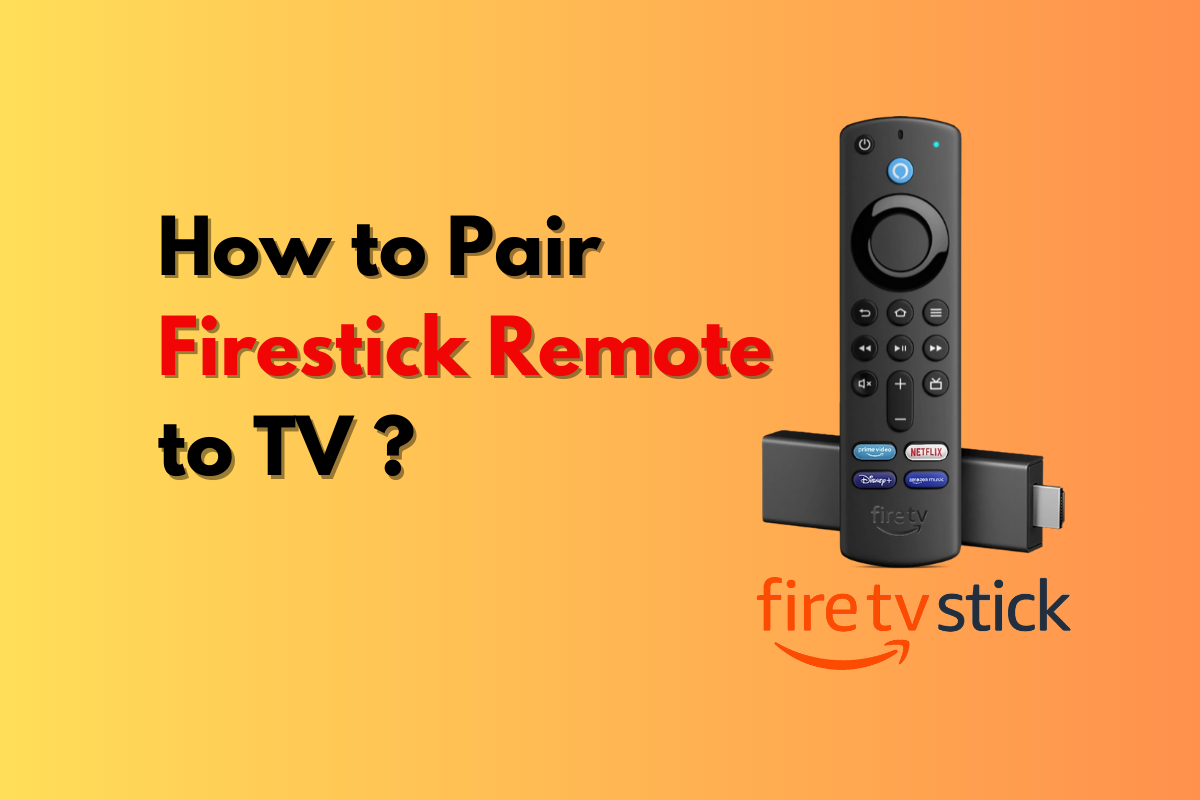
Picture this: You’re settled in for a relaxing evening of streaming your favorite shows through your Amazon Firestick, but your remote suddenly stops responding. Before panic sets in, understand that pairing or re-pairing your Firestick remote is a straightforward process that takes less than five minutes in most cases. Whether you’ve just unboxed a new remote, replaced batteries, or experienced connection issues, this comprehensive guide will walk you through every scenario to get your IPTV Firestick streaming experience back on track.
- Alexa Voice Remotes and basic Firestick remotes require different pairing methods
- Most pairing issues resolve within 60 seconds using the Home button hold technique
- Alternative control methods exist through smartphone apps when remotes fail completely
- Interference from other devices can disrupt Bluetooth connectivity on modern IPTV boxes
- Factory reset options provide solutions when standard pairing methods fail
Understanding Your Firestick Remote Type for IPTV Streaming
Before attempting to pair your remote, identifying which generation and type you own is crucial. Amazon has released several remote versions since the Firestick’s introduction, and each has specific pairing requirements that affect how you control your IPTV player applications.
The first-generation basic remote uses infrared (IR) technology, requiring direct line-of-sight to your device. These remotes typically feature minimal buttons without voice control capabilities. If your remote lacks a microphone button, you’re working with this older model, which pairs automatically when batteries are inserted.
The Alexa Voice Remote (2nd and 3rd generation) uses Bluetooth technology, allowing control without direct line-of-sight. These remotes feature dedicated volume controls and a blue voice button, making them ideal for navigating complex IPTV service menus hands-free. According to Amazon’s official support documentation, Bluetooth remotes require active pairing but offer superior functionality.
The latest Alexa Voice Remote Pro includes programmable buttons and remote finder capabilities through your Alexa app. This premium option provides the most seamless experience when controlling sophisticated GSE Smart IPTV.
Standard Pairing Method for Alexa Voice Remote
The vast majority of Firestick users will successfully pair their remotes using this primary method. This technique works for all Alexa Voice Remote generations and represents the fastest path to restoring control of your streaming device.
Step-by-Step Pairing Process
Begin by ensuring your Firestick is powered on and displaying content on your television. If your TV shows no signal, verify all HDMI connections are secure and your TV is set to the correct input source. Your IPTV box must be fully booted before pairing attempts will succeed.
Position yourself within 10 feet of your Firestick device to ensure optimal Bluetooth signal strength. Physical obstacles like furniture or metal objects between your remote and device can interfere with the pairing process, particularly problematic in densely populated apartments where multiple wireless devices compete for bandwidth.
Press and hold the Home button (the house icon) for approximately 10 seconds. During this time, you’ll notice the LED light on your remote beginning to flash. This blue pulsing indicates the remote has entered pairing mode and is actively searching for your Firestick.
Continue holding the button until you see an on-screen message confirming “New remote found.” This notification typically appears within 30-60 seconds. The message may display briefly, so watch carefully. Once confirmed, your remote is successfully paired and ready to navigate through your favorite streaming applications.
Troubleshooting Initial Pairing Failures
If the standard method doesn’t yield results after 60 seconds, fresh batteries are your first troubleshooting step. Weak batteries often provide just enough power to illuminate the remote LED but insufficient voltage for establishing a stable Bluetooth connection. Replace with new alkaline batteries, ensuring correct polarity placement.
According to research from Bluetooth SIG, environmental interference affects connection reliability. Move closer to your device and remove potential obstacles. Microwave ovens, wireless routers, and cordless phones operating on 2.4GHz frequencies can disrupt Bluetooth signals during pairing attempts.
Restart your Firestick completely by unplugging the power adapter for 30 seconds, then reconnecting. This power cycle clears temporary software glitches that might prevent remote detection. While your device reboots, remove and reinsert your remote batteries to ensure a fresh connection attempt.
Alternative Pairing Using the Fire TV App
When your physical remote becomes completely unresponsive, your smartphone transforms into a powerful backup controller. This method proves invaluable during the pairing process itself, as you can navigate settings menus to troubleshoot more complex issues affecting your IPTV TV experience.
Download the official Fire TV app from the Apple App Store or Google Play Store. Ensure your smartphone connects to the same WiFi network as your Firestick—this network matching is absolutely critical for device discovery. Open the app and select your Firestick from the list of available devices.
A four-digit code appears on your television screen. Enter this code in the Fire TV app to establish the connection. Your smartphone screen now mirrors all remote functionality, including directional navigation, selection buttons, and even voice commands through your phone’s microphone.
With app control established, navigate to Settings > Controllers & Bluetooth Devices > Amazon Fire TV Remotes > Add New Remote. This pathway allows you to initiate pairing mode from the Firestick side, which can resolve situations where the remote’s Home button method fails to trigger recognition. This technique particularly benefits users managing multiple streaming devices or comparing different IPTV boxes in their entertainment setup.
Advanced Pairing for First-Generation IR Remotes
Owners of older, infrared-based Firestick remotes face simpler yet more restrictive pairing scenarios. These remotes automatically pair when batteries are installed, operating through line-of-sight communication rather than wireless Bluetooth connections.
Point your remote directly at the Firestick device (not your TV screen) and press any button. The device should respond immediately if the remote functions correctly. Infrared remotes require unobstructed paths, so ensure nothing blocks the small IR receiver on your Firestick.
If button presses yield no response, the issue typically stems from battery depletion or physical remote damage rather than pairing problems. Test your remote using your smartphone camera—point the remote at your phone’s camera lens and press any button. You should see a purple or white light flash on your screen if the IR emitter functions properly. No visible light indicates hardware failure requiring remote replacement.
Resolving Persistent Bluetooth Connectivity Issues
Some users experience recurring disconnections even after successful pairing. These intermittent failures often relate to Bluetooth interference in crowded wireless environments rather than defective hardware. Understanding these environmental factors proves essential for maintaining reliable control of sophisticated applications like those found when you install SET IPTV on Amazon Firestick 4K.
Clearing Bluetooth Device Memory
Your Firestick maintains a memory of all previously paired Bluetooth devices. This accumulated list can occasionally cause conflicts, particularly if you’ve connected multiple controllers, keyboards, or remotes over time. Navigate to Settings > Controllers & Bluetooth Devices > Other Bluetooth Devices and remove any devices you no longer use.
After clearing unwanted devices, perform the standard Home button pairing process again. Many users report immediate improvement in connection stability after this housekeeping task, as the Firestick can focus resources on maintaining your primary remote connection.
Updating Firestick Software
Outdated system software occasionally introduces compatibility issues with newer remote models. Amazon regularly releases firmware updates that improve Bluetooth performance and remote responsiveness. Access Settings > My Fire TV > About > Check for Updates to ensure you’re running the latest version.
These updates download automatically when your device sits idle, but manual checking ensures you haven’t missed critical patches. According to Amazon’s developer documentation, each software revision includes specific radio firmware improvements that enhance wireless connectivity across all paired peripherals.
Factory Reset as Last Resort for Pairing Problems
When all conventional methods fail, a factory reset returns your Firestick to its original state, eliminating software corruption that might prevent remote pairing. Be aware this process erases all installed applications, login credentials, and personalized settings—making it truly a last-resort solution.
Navigate to Settings > My Fire TV > Reset to Factory Defaults using either the Fire TV app on your smartphone or a paired remote that may still have limited functionality. The reset process takes approximately 5-10 minutes, after which your Firestick will display the initial setup wizard.
During post-reset setup, the pairing screen appears automatically, prompting you to press the Home button on your remote. Success rates for pairing after factory reset exceed 95%, as you’re establishing the connection on a clean system without interference from corrupted Bluetooth profiles or conflicting software states.
Remember that you’ll need to reinstall all your streaming applications, including specialized software like XCIPTV or other IPTV player options you previously configured. This reinstallation process provides an opportunity to update apps to their latest versions, potentially improving overall system performance.
Professional IPTV Services and Remote Optimization
While mastering remote pairing represents an essential technical skill, the quality of your streaming experience ultimately depends on the reliability and performance of your IPTV service provider. Professional services optimize their applications for seamless remote control integration, ensuring every button press delivers immediate response without lag or buffering interruptions.
Premium IPTV providers design their interfaces specifically for remote navigation, with logical menu structures that minimize button presses to reach your desired content. This attention to user experience becomes particularly noticeable when comparing free services to professional alternatives—the difference in responsiveness and control precision is immediately apparent.
Additionally, established IPTV service providers offer dedicated technical support for device-specific issues, including remote pairing troubles. Their expertise extends beyond content delivery to encompass the entire streaming ecosystem, ensuring your hardware and software work harmoniously together.
Maintaining Long-Term Remote Performance
Once you’ve successfully paired your remote, preventive maintenance ensures continued reliable operation. Simple habits protect your investment and minimize future connectivity issues that could interrupt your viewing experience.
Battery Management Best Practices
Replace batteries proactively rather than waiting for complete failure. Alexa Voice Remotes typically provide 2-3 months of regular use per battery set, but actual lifespan varies based on voice command frequency and button press volume. Keep spare batteries readily available to avoid scrambling during critical moments.
Remove batteries if you’ll be away from home for extended periods. This prevents potential corrosion from battery leakage, which can permanently damage remote circuitry. Inspect battery compartments monthly for any signs of white residue or discoloration indicating early-stage corrosion.
Physical Care and Handling
Keep your remote away from liquids and extreme temperatures, as moisture infiltration is the leading cause of permanent remote failure. Silicone protective cases provide affordable insurance against accidental spills and drops, particularly valuable in households with children or pets.
Clean your remote quarterly using a slightly damp microfiber cloth. Accumulated dust and debris around buttons can interfere with contact mechanisms, leading to unresponsive or sticky keys. Avoid harsh chemical cleaners that might damage the rubberized button coating or internal circuitry.
Frequently Asked Questions (FAQ)
Q: Why won’t my Firestick remote pair even after holding the Home button?
A: First verify your batteries are fresh and properly installed. Ensure your Firestick is powered on and you’re within 10 feet with no obstacles. If problems persist, restart your Firestick by unplugging it for 30 seconds, then attempt pairing again with new batteries installed.
Q: Can I use multiple remotes with one Firestick for IPTV control?
A: Yes, Amazon Firesticks support pairing up to seven Bluetooth remotes simultaneously. Navigate to Settings > Controllers & Bluetooth Devices > Amazon Fire TV Remotes > Add New Remote and follow the standard pairing process for each additional remote you want to connect.
Q: Does my Firestick remote work with other IPTV boxes?
A: Fire TV remotes are designed exclusively for Amazon’s ecosystem and won’t pair with other manufacturer’s devices. However, many IPTV streaming platforms like Roku offer their own compatible remotes with similar functionality for controlling dedicated streaming hardware.
Q: What should I do if my remote pairs but buttons don’t respond correctly?
A: This indicates potential button mapping corruption. Try removing the remote from your Firestick’s paired devices list, then re-pairing from scratch. If specific buttons remain unresponsive, the remote may have physical damage requiring replacement. Contact Amazon support for warranty replacement options if applicable.
Conclusion
Mastering Firestick remote pairing empowers you to quickly resolve one of the most common technical obstacles in home streaming entertainment. Whether you’re using the standard Home button hold method, leveraging your smartphone as a backup controller, or troubleshooting persistent Bluetooth interference, these techniques ensure uninterrupted access to your IPTV content library.
Remember that while technical proficiency with your hardware proves valuable, the foundation of exceptional streaming experiences rests on choosing a premium IPTV service that delivers consistent performance, diverse content, and responsive customer support. Professional providers optimize every aspect of the viewing experience, from remote control responsiveness to stream quality and channel reliability.
Ready to experience the difference that premium IPTV service makes? Start your IPTV Free Trial today and discover why thousands of viewers trust professional streaming solutions for their entertainment needs. Test our service risk-free for 24 hours and see how seamless your streaming experience can truly become.



