
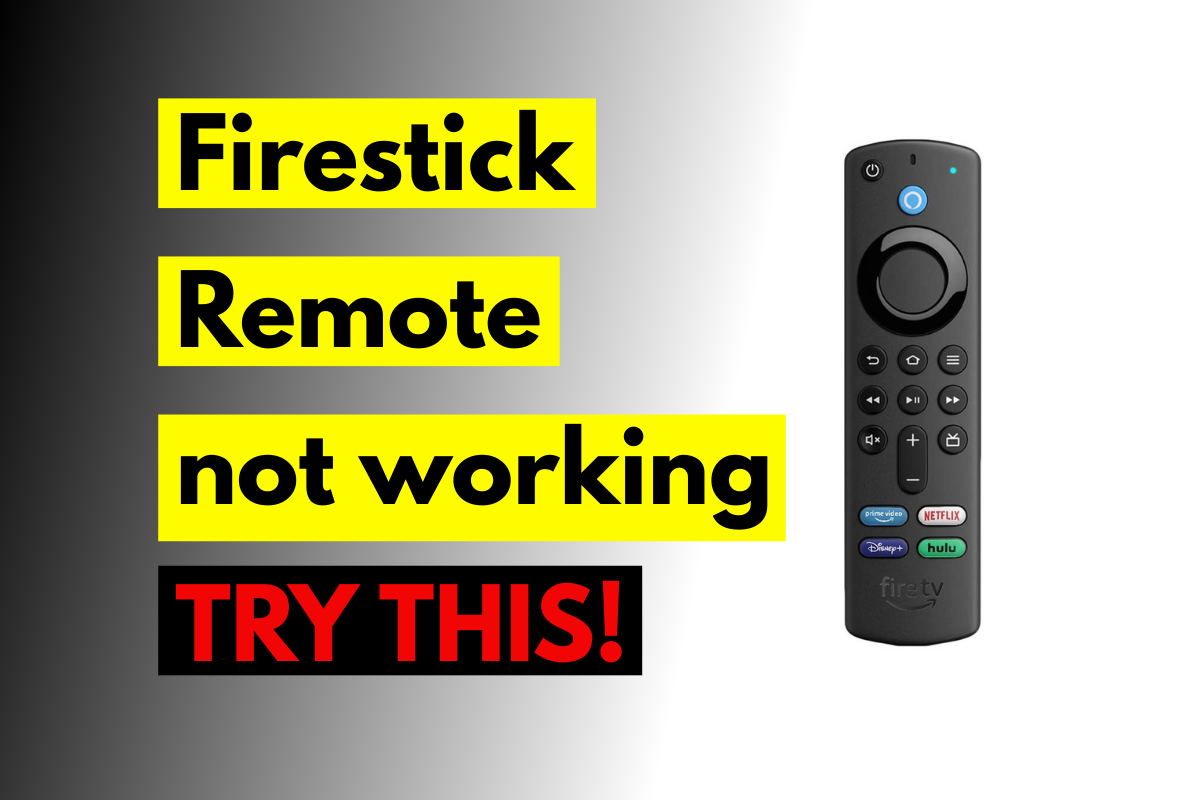
There’s nothing more frustrating than settling in for your favorite show, only to find your Firestick remote has stopped responding. Whether you’re streaming live sports, binge-watching series, or navigating through your favorite IPTV service, a malfunctioning remote can bring your entertainment to a grinding halt. The good news? Most Firestick remote issues are surprisingly easy to fix without technical expertise or expensive replacements. In this comprehensive guide, we’ll walk you through 10 proven solutions that have helped thousands of Firestick users restore their remotes to perfect working condition.
- Most Firestick remote problems stem from simple connectivity issues, battery problems, or pairing failures that can be resolved in minutes
- Basic troubleshooting like restarting your device and replacing batteries solves approximately 70% of remote issues
- Advanced fixes including re-pairing, factory resets, and interference checks address persistent problems
- Alternative control methods through smartphone apps ensure you’re never locked out of your entertainment system
- Understanding the difference between Bluetooth and infrared remotes helps diagnose issues faster
Understanding Why Your Firestick Remote Stops Working
Before diving into solutions, it’s essential to understand what causes these remote failures. Firestick remotes primarily use Bluetooth technology to communicate with your device, unlike traditional TV remotes that rely on infrared signals. This means your remote doesn’t need a direct line of sight to function, but it also introduces unique connectivity challenges.
The most common culprits include depleted batteries, Bluetooth pairing disruptions, firmware glitches, physical obstructions, and electromagnetic interference from other wireless devices. Environmental factors like distance from the Firestick, walls, and competing signals from Wi-Fi routers can also degrade performance. For users streaming content through an IPTV player, remote reliability becomes even more critical since navigation requires precise control.
Interestingly, the newer Firestick 4K and Fire TV Cube models use both Bluetooth and infrared technology, allowing them to control TV volume and power. This dual functionality can sometimes create additional troubleshooting complexities, but also provides backup control options when one system fails.
Fix #1: Replace or Recharge Your Batteries (The 5-Minute Solution)
This might seem obvious, but battery depletion accounts for nearly 40% of all Firestick remote failures. Even if your remote occasionally responds, weak batteries can cause intermittent connectivity that mimics more serious problems.
Remove the battery cover and inspect the AAA batteries for corrosion or leakage. If you see any white or greenish residue, clean the contacts with a cotton swab dipped in rubbing alcohol before inserting fresh batteries. Always use high-quality alkaline or lithium batteries rather than cheap alternatives, as inconsistent power delivery can cause erratic behavior.
For environmentally conscious users, rechargeable batteries work perfectly with Firestick remotes. However, remember that rechargeable batteries typically provide 1.2V compared to 1.5V for alkaline batteries, which may result in slightly shorter operational range. If you’re frequently using your remote to navigate through multiple IPTV player applications, investing in quality batteries prevents frustrating interruptions during critical moments.
Pro Tip: Battery Testing Method
Don’t trust batteries that “look fine.” Test them in another device or use a battery tester. Many batteries retain enough charge to power low-demand devices while failing to provide the consistent current Bluetooth communication requires.
Fix #2: Restart Your Firestick Device (The Universal Reset)
When technology misbehaves, the time-tested solution of “turning it off and on again” remains surprisingly effective. A simple restart clears temporary software glitches, refreshes Bluetooth connections, and resolves memory conflicts that might be interfering with remote communication.
Navigate to Settings > My Fire TV > Restart using your existing remote (if partially functional) or the Fire TV mobile app. If your remote is completely unresponsive, unplug your Firestick from the power source, wait 30 seconds, then reconnect it. This “cold boot” forces a complete system refresh that often restores remote functionality immediately.
For users with an IPTV box connected alongside their Firestick, ensure you’re restarting the correct device. The restart process doesn’t affect your installed apps, login credentials, or personalized settings, making it a risk-free first step in troubleshooting.
Fix #3: Re-Pair Your Remote with Your Firestick
Bluetooth pairing can spontaneously disconnect due to software updates, interference, or system glitches. Re-establishing this connection often resolves persistent remote issues that simple restarts don’t fix.
Hold down the Home button for 10-15 seconds while standing within 3 feet of your Firestick. You should see a blue light flashing on your remote, indicating it’s entered pairing mode. On your Firestick screen, you’ll receive a notification confirming the connection. If nothing happens after 30 seconds, try the process again with fresh batteries installed.
For Alexa Voice Remote users, press and hold both the Back and Menu buttons simultaneously for 10 seconds instead. This alternative method works particularly well with second and third-generation remotes that don’t respond to the standard Home button pairing technique.
If you’re managing multiple Fire TV devices throughout your home, be aware that remotes can accidentally pair with the wrong unit. Ensure you’re standing near the correct Firestick when initiating pairing, and temporarily unplug other Fire TV devices to prevent cross-pairing confusion.
Fix #4: Remove Interference from Other Wireless Devices
Bluetooth operates on the 2.4GHz frequency band—the same congested spectrum used by Wi-Fi routers, cordless phones, baby monitors, microwave ovens, and wireless speakers. This electromagnetic traffic jam can severely degrade your remote’s performance, especially in apartments or homes with multiple wireless devices.
Identify potential interference sources within 10 feet of your Firestick. Try temporarily turning off nearby devices to isolate the problem. Wireless signal interference often manifests as delayed button responses, missed commands, or complete connection loss.
USB 3.0 devices and cables generate surprising amounts of electromagnetic interference. If your Firestick is plugged into a hub or extender near USB 3.0 ports, try relocating it or using a short HDMI extension cable to create physical separation. This simple adjustment has resolved remote issues for countless users streaming through various IPTV services.
The 5GHz Solution
If possible, configure your Wi-Fi router to prioritize 5GHz bands for your streaming devices. This reduces congestion on the 2.4GHz spectrum, improving Bluetooth performance for your remote while simultaneously enhancing streaming quality for bandwidth-intensive applications.
Fix #5: Check for Physical Obstructions and Proper Positioning
While Bluetooth doesn’t require line-of-sight like infrared, physical barriers still affect signal strength. Concrete walls, metal furniture, large aquariums, and even your body position can weaken the connection between your remote and Firestick.
Ensure your Firestick isn’t hidden behind your TV or enclosed in a cabinet. The optimal setup places your Fire TV device in an open area with minimal obstructions between the remote and the device. If your Firestick is plugged into a rear HDMI port on a wall-mounted TV, consider using an HDMI extender cable to position it away from the metal TV chassis, which can act as a Bluetooth shield.
The maximum effective range for Firestick remotes is approximately 30 feet in ideal conditions, but real-world performance typically drops to 15-20 feet with typical household obstacles. If you’re controlling your system from across a large room while navigating through content on IPTV Smarters Pro or similar applications, distance might be your limiting factor.
Fix #6: Update Your Firestick Firmware
Amazon regularly releases firmware updates that address connectivity bugs, improve Bluetooth stability, and enhance overall system performance. Running outdated software can cause compatibility issues between your remote and Firestick, especially after remote battery replacements or system restarts.
Navigate to Settings > My Fire TV > About > Check for Updates. If an update is available, allow it to download and install completely. Your device will restart automatically, which may take 5-10 minutes depending on the update size. During this process, your remote might temporarily disconnect—this is normal behavior.
Automatic updates typically occur during idle periods, but manual checking ensures you’re running the latest version. For users who’ve disabled automatic updates to prevent interruptions during live sports or important events on their IPTV TV streams, periodic manual checks become essential for maintaining system health.
Fix #7: Use the Fire TV Mobile App as a Backup Remote
When your physical remote fails completely, the Amazon Fire TV app transforms your smartphone into a fully functional replacement. Available for both iOS and Android devices, this free application provides complete navigation control, text input capabilities, and voice search functionality.
Download the app, ensure your smartphone and Firestick are connected to the same Wi-Fi network, and select your device from the list. The app automatically discovers Fire TV devices on your local network. Once connected, you’ll see a virtual remote interface with all standard buttons plus the added convenience of keyboard input for searches and login credentials.
This solution proves particularly valuable when configuring new IPTV applications that require extensive text entry. The mobile keyboard is significantly faster than navigating an on-screen keyboard with directional buttons, transforming a frustrating 10-minute task into a 30-second setup process.
Advanced Mobile App Features
Beyond basic navigation, the Fire TV app offers voice search through your phone’s microphone, mirroring photos to your TV screen, and even game controller functionality for compatible titles. Keep this app installed even after resolving your remote issues—it’s an invaluable backup control method.
Fix #8: Factory Reset Your Firestick Remote
When standard troubleshooting fails, a factory reset of your remote (not your Firestick) can resolve deep-seated pairing issues. This process erases all remote settings and forces a fresh connection establishment.
Unplug your Firestick from power, press and hold the Left button, Menu button, and Back button simultaneously for 12 seconds, then release. Keep holding these buttons as you plug your Firestick back in, maintaining the button press for an additional 5 seconds. This complete reset sequence clears all pairing data from your remote.
After completing the reset, follow the re-pairing instructions from Fix #3. This comprehensive approach resolves stubborn connectivity issues that survive standard troubleshooting, particularly after system updates or when remotes have been dropped or exposed to moisture.
Fix #9: Perform a Full Firestick System Reset (Last Resort)
Warning: This option erases all installed applications, settings, and login credentials. Only attempt this after exhausting all other solutions, and ensure you have your IPTV service credentials readily available for reconfiguration.
Navigate to Settings > My Fire TV > Reset to Factory Defaults. If your remote is completely non-functional, press and hold the Back and Right buttons simultaneously for 10 seconds using the Fire TV app. Confirm your selection, and the system will revert to its original state.
After the reset completes, you’ll need to reconfigure your Wi-Fi connection, reinstall applications like VLC Media Player for IPTV, and re-enter all login information. While time-consuming, this nuclear option resolves software corruption issues that standard troubleshooting cannot address.
Fix #10: Consider Hardware Replacement or Alternatives
If none of the previous solutions restore functionality, your remote may have suffered internal hardware failure. Physical damage from drops, liquid exposure, or component wear can cause irreparable malfunctions.
Amazon sells replacement remotes directly, with prices ranging from $15-30 depending on the generation and features. Third-party alternatives exist at lower price points, but verify compatibility with your specific Firestick model before purchasing. The Alexa Voice Remote (3rd Gen) offers the most features and works with all recent Fire TV devices.
Alternatively, consider universal remote controls that support Fire TV devices. Many mid-range universal remotes ($25-50) can control both your Firestick and TV, reducing clutter while providing backup functionality if either remote fails. This proves especially valuable for users managing multiple devices including dedicated IPTV boxes and traditional cable equipment.
When Professional Service Matters
Throughout this troubleshooting journey, reliable technology infrastructure matters. While fixing your remote, ensure the content you’re streaming is equally dependable. Professional IPTV services offer stable streams, extensive channel selections, and technical support that complement your properly functioning hardware for an exceptional entertainment experience.
Frequently Asked Questions (FAQ)
Q: Why does my Firestick remote work intermittently but not consistently?
A: Intermittent functionality typically indicates weak batteries, Bluetooth interference from nearby wireless devices, or excessive distance between the remote and Firestick. Replace batteries first, then eliminate potential interference sources. Ensure your Firestick isn’t enclosed in a cabinet or positioned behind metal objects that can block Bluetooth signals.
Q: Can I use my TV remote to control my Firestick?
A: Many modern TVs with HDMI-CEC support can control basic Firestick navigation through their standard remotes. Enable HDMI-CEC (sometimes called Anynet+, Bravia Sync, or similar brand-specific names) in both your TV and Firestick settings. This allows power, volume, and basic directional controls, though advanced features like voice search remain unavailable.
Q: How do I know if my Firestick remote is a Bluetooth or infrared model?
A: First-generation Firestick remotes use infrared and require line-of-sight to function. All Alexa Voice Remotes and remotes included with Fire TV Stick 4K or newer models use Bluetooth. Check for a microphone button—its presence indicates a Bluetooth-enabled Alexa Voice Remote. Infrared remotes must point directly at the device, while Bluetooth remotes work from any direction.
Q: Will resetting my Firestick delete my IPTV subscriptions and settings?
A: A factory reset erases all installed applications, customizations, and locally stored login credentials. However, your IPTV subscription itself remains active with your service provider. After resetting, you’ll need to reinstall your IPTV applications and re-enter your credentials. Always backup your subscription information, M3U playlist URLs, and activation codes before performing a factory reset.
Conclusion
A malfunctioning Firestick remote doesn’t mean the end of your streaming entertainment. The ten fixes outlined in this guide address everything from simple battery issues to complex Bluetooth interference problems, empowering you to restore full functionality without expensive repairs or technical support calls. Most users resolve their remote issues within minutes using the first three solutions, while the advanced troubleshooting steps handle even the most persistent problems.
Remember that maintaining quality hardware is only half the equation—the content you stream matters equally. Don’t let subpar streaming services waste the time you’ve invested in perfecting your setup. Ready to experience crystal-clear channels, reliable connections, and comprehensive content libraries that justify your troubleshooting efforts? Start your IPTV Free Trial today and discover why thousands of satisfied customers choose professional streaming solutions that match their perfectly functioning hardware.



